BackupKit 2026.10.2 is out, and nearly all of it answers one question: when BackupKit says a backup worked, is that true? I spent most of October going through BackupKit the way a sceptical user would, looking for every way a backup could fail without telling you, or report success when something was missing. I found more of those than I would like, and this release fixes them. Here is what changed, in plain words.
Two things are worth a minute even if you never open the app: a fix for backups to S3 and other object storage, and a one-time step if your NAS or WebDAV server uses its own HTTPS certificate.
If you back up to S3 or other object storage
This is the one I am least proud of. If you back up to Amazon S3, Azure Blob, Google Cloud Storage, Cloudflare R2, Backblaze B2, Wasabi or DigitalOcean Spaces, a backup larger than about a gigabyte could upload correctly and still be reported as failed. The data was left in a folder ending in _part, where restore never looked, and where your provider kept charging you for it.
Backups to these storages are now written straight into place and marked complete when they finish, with no copy step afterwards, so it cannot happen again. If you do find _part folders on a bucket, point a new backup at that folder and BackupKit offers to recover the complete backups among them.
While I was there: a compressed or encrypted backup is a single file, and these storages accept at most about 5 GB in one upload, so bigger backups could not be stored there at all. Large files now go up in parts, and an upload that cannot finish is cleaned up instead of being left on your bucket.
Every backup is checked when it finishes
Until now, “success” meant that nothing went wrong during the upload. That is not quite the same as your files being there. Now every backup writes a small .manifest.json next to itself, listing every file with its size and date, whether the run finished, and anything it could not include. The moment a run ends, BackupKit checks the destination against that list. A backup can no longer say “completed” when nothing arrived.
- Verify, whenever you like. Each backup has a new Verify action. For a plain backup it checks that every file is present at the right size. For a compressed or encrypted one it reads the archive's own index without downloading the whole thing, and a full check reads every file back with your password.
- Restore tells you what you are restoring. If the backup you picked did not finish, or has never been verified, Restore says so before it starts.
- Restores to this PC or a network share arrive whole. Some cloud storages send a file in several pieces when they are busy, and only the last piece was kept, so a restored file could be cut short while the restore reported success. The pieces are now joined, and a file that cannot be fetched whole fails with a message saying so.
Know when a backup did not happen
Every notification BackupKit sent used to come from a backup that ran. Which meant the failure that matters most, the backup that quietly stopped running, was the one you never heard about. There is now a Monitoring page in Settings that watches every scheduled backup and tells you when one is late while BackupKit is running, when its time passed while BackupKit or the PC was off, and when a running backup is stuck. A stuck backup is stopped for you, so it no longer blocks its own schedule.

The alert goes to the same places as the rest of BackupKit's notifications: a popup, email, Telegram, a webhook or a script of your own. And for the case BackupKit cannot report on itself, because it is closed or the PC is off, there is a heartbeat: give it an address from a service like healthchecks.io, and BackupKit calls it once an hour while your backups are on time. When the calls stop, that service tells you.
Webhooks report their own failures now too. One that could not be delivered used to fail silently, and they accept custom headers and a body template, so they can sign in and match a format like Slack's.
In the tray, and one right-click away
Scheduled backups only run while BackupKit is running, and that was easy to miss. So when you create your first backup, BackupKit now offers to start with Windows and wait in the tray, both switched on. The tray icon carries a small green, amber or red dot for how your backups are doing, its tooltip says when the last one ran, and its menu lists your backups with a way to run one.
On Windows 11, right-click any folder in File Explorer and choose Create Backup. BackupKit opens with the new-backup wizard already pointed at that folder, whether it was in the tray or closed.
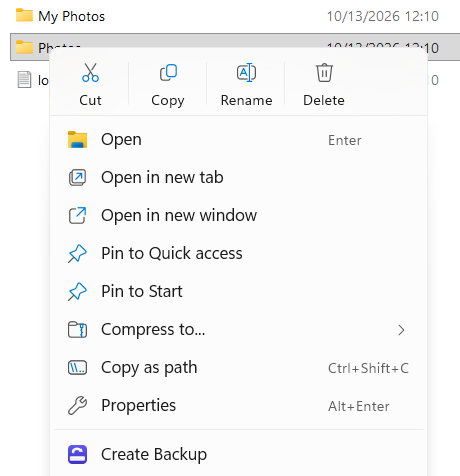
In the September post, the tray icon and the File Explorer menu were two of the four things I listed as not shipped yet. Both are in this release.
Backups that hold what you think they hold
- Hidden files and folders are backed up. Plain backups used to leave them out, including every Git repository's
.gitfolder, while compressed backups kept them. Both now include them, so if you back up code, your next backup may be noticeably bigger. That is the history it should have had all along. Shortcuts to other folders are not followed, so nothing is backed up twice. - One file in use no longer fails the whole backup. A compressed or encrypted backup used to give up on the first locked file, which made the Documents folder hard to back up at all. Now it saves everything else, names what it could not read, and finishes as “completed with errors”.
- A backup that leaves something out says so. If a folder you selected has been moved or deleted, or could not be listed in time, the run is “completed with errors” and names it, instead of a quiet success.
- Retention always keeps your newest complete backup, even after several runs in a row that completed with errors.
- No more failing halfway for lack of space. A backup too big for your free disk space is refused up front, with the space it needs and the drive it would use.
- The encryption password is typed twice, or shown while you type it, so a typo cannot lock you out of your own backup.
Leave out what you never need back
Backups now have filters. Tick a preset for temporary files and caches, node_modules and .git folders, or files over 1 GB, or write your own patterns: *.iso, Cache, a folder name. You can also take only certain kinds of files, and set a size limit. An excluded folder is never even listed, so a backup that skips a big cache is faster as well as smaller, and filters work the same for compressed and encrypted backups.

Restoring a filtered backup over its original folder merges, so the files the filter left out stay where they are.
There is also a switch to skip a run when nothing has changed. BackupKit compares the source with the last backup first, and if nothing differs it records “No changes” instead of storing another identical copy. It is on by default for new backups of folders on this PC, and a scheduled run still goes ahead at least once a week. To be clear about what this is not: each backup is still a complete copy. True incremental backups, where only the changed files are stored, are still ahead.
A new PC, the same backups
The day you need a backup most is often the day your old PC is gone. So: install BackupKit on the new one, connect the same storage, and point a new backup at the folder that already holds your backups. BackupKit offers to adopt them, the earlier runs appear in its history, and you can restore from them straight away. If they were made from a different folder, it tells you where they came from and leaves the choice to you. Retention never deletes backups it found this way.
And if you would rather not use BackupKit at all, a plain-text HOW-TO-RESTORE.txt in your backup folder explains how to get your files back with nothing but 7-Zip and your password. Your backups are standard AES-encrypted zips, and that file now says so where you will find it.
Your own NAS or WebDAV server over HTTPS? Trust its certificate once
BackupKit now checks the HTTPS certificate of every server it connects to, as Windows does. It used to accept any certificate, which meant a connection could be intercepted without you knowing. If your NAS or WebDAV server uses a certificate it made itself, as many home NAS boxes do, its backups stop connecting until you trust it once: edit the storage, press Test connection, check the certificate it shows you (who it was issued to and by, and its fingerprint), and trust it. BackupKit remembers it for that server, and a backup stopped by this says so. Cloud storages, email and Telegram are always checked.
In the same spirit, SFTP warns when a server's key changes. A key you accept is remembered for that server and port, and if a server you know suddenly presents a different one, BackupKit warns that someone may be intercepting the connection, with Reject as the default. Keys you accepted before still count, so you are not asked again.
A tidier app
The work above is mostly invisible, so it is nice that some of this release is not. BackupKit is built on the same foundation as FTPie, the app it grew out of, and it picked up the same polish. The main menu now opens from the arrow at the top left as a panel under the tabs, with everything BackupKit does in one row each and a line saying what it is for.

The Backup page got a calmer header. Filter by status with one switch (All, Healthy, Warning, Failed), each with its colour dot and count. Create New is the one coloured button, the sort button says its order, and you can finally see which backup is selected. Colour on a backup now always means its health, and runs missed while BackupKit was closed are announced by a quiet notice with Run all.

When you browse a storage to pick what to back up, the toolbar follows what you select, the view mode is a switch you can see, and the address bar lets you jump to any folder, or type a path and have the folder names finished for you.
Fixes worth a line each
- MEGA signs in again. MEGA started asking apps for an extra security check, and the sign-in failed with a message about quota even with the right password.
- OneDrive signs in even if you switch between Personal and Work or school while its sign-in page is open.
- SFTP works on PCs that allow only FIPS-approved encryption, as many company PCs do, and a busy FTP server that says “try again later” no longer fails a file on the first try.
- A backup to a second drive or a USB disk showed “0 B”. The data was always copied; the real size is shown now.
- BackupKit starts on PCs where Windows refuses to protect its data, instead of closing before its window appears.
- Errors you can act on. An expired cloud sign-in tells you to sign in again, and storage errors read as sentences instead of a server's raw reply.
- The temporary folder BackupKit creates is named after BackupKit now, not
~FTPie-Temp.
Still not here
So nobody is surprised: incremental backups (each run is a complete copy, though the manifests in this release are the groundwork) and bandwidth throttling are both still ahead. BackupKit reads files other programs have open, but it does not snapshot the disk, so a database being written to during a backup is copied as it was mid-write: close such programs, or schedule the backup for when they are idle. And one backup still takes one source folder.
Get it
BackupKit updates itself, so you may already be on 2026.10.2: check Settings → About. If not, download it here. It installs over your existing copy and keeps your backups and settings. This post covers the highlights; the full release notes list every change.
Thanks for reading. If something in your backups still is not where you expect it, tell me. That is exactly the kind of thing this release was about.