The scheduler is the part of BackupKit you set up once and stop thinking about. A short wizard turns a folder you care about into a backup that runs on its own — with explicit, predictable rules for retention, missed runs, and what happens when your PC is asleep at 2 AM.
Three steps to a running backup
The wizard takes you from "I have files I care about" to "they're backed up on a schedule" in under a minute.
Pick files or folders from your PC, a NAS, or any connected cloud — then choose where they go.
Schedule, compression, encryption, filters, missed-run policy, retention, and notifications — one panel, sensible defaults.
Name the job and save. The next run time and status appear on the dashboard immediately.
Schedules that fit your workflow
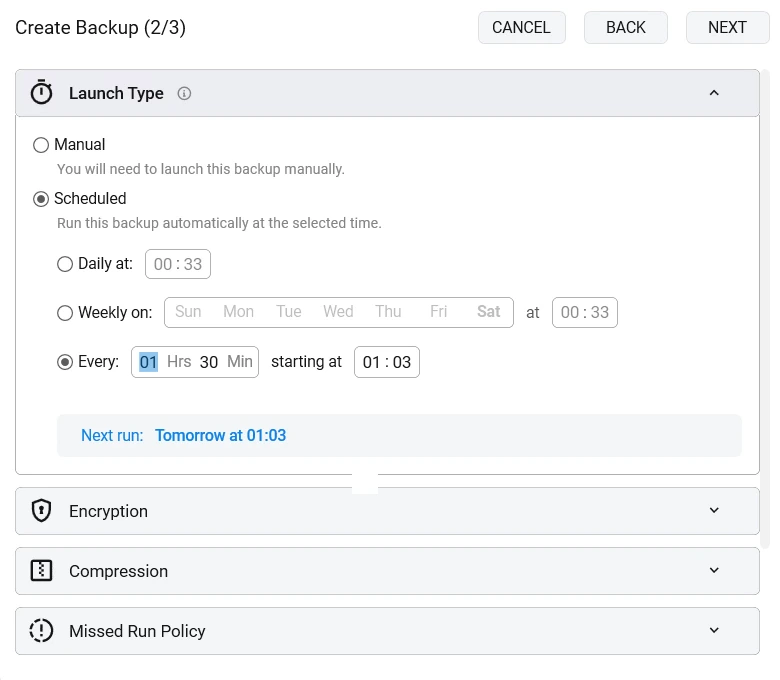
From "every night at 2 AM" to "every six hours" to "only when I push the button" — pick what fits and BackupKit handles the timer.
- Daily: at a time you choose, every day
- Weekly: specific days (e.g. Mon/Wed/Fri)
- Custom intervals: every N hours, days, or weeks
- Manual only: triggered from the app, on your schedule
A backup can also skip a run when nothing has changed: BackupKit compares the source with the last backup first and records “No changes” instead of storing an identical copy. It is on by default for new backups of folders on this PC, and a scheduled run still goes ahead at least once a week. Each backup is still a complete copy; this only saves the ones that would have been the same.
Leave out what you never need back
Filters keep caches and clutter out of a backup. Tick a preset, write your own patterns, or set a size limit:
- Presets: temporary files and caches;
node_modulesand.gitfolders; files over 1 GB - Your own patterns:
*.iso,Cache, a folder name, one per line. Or take only the files that match, such as*.docx - A size limit: leave out every file larger than a size you choose
An excluded folder is never even listed, so the backup is faster as well as smaller, and filters work the same for compressed and encrypted backups. Hidden files and folders are included unless you leave them out.

When a run is missed
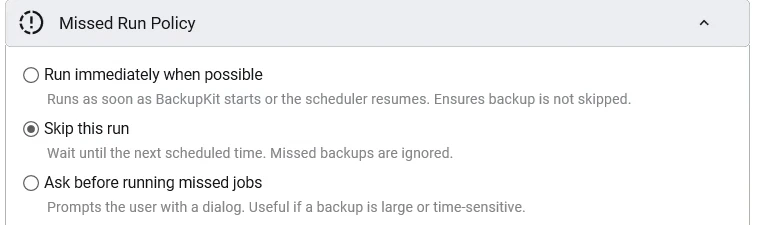
Real PCs sleep, travel, and go offline. If a backup was due while yours was asleep, you decide what happens:
- Run immediately when possible: catch up as soon as BackupKit starts or the scheduler resumes, so the backup isn't skipped
- Skip this run: wait until the next scheduled time; missed backups are ignored
- Ask before running missed jobs: prompt with a dialog and let you decide, which is what you want when a backup is large or time-sensitive
Out of the way, in the tray
Scheduled backups run while BackupKit is running, so when you create your first backup it offers to start with Windows and wait in the tray. From there:
- The tray icon shows how your backups are doing: a green, amber or red dot, and a tooltip that says when the last one ran
- The tray menu lists your backups with their status, and runs any of them
- On Windows 11, right-click a folder in File Explorer and choose Create Backup: BackupKit opens the new-backup wizard already pointed at it
- A late, missed or stuck backup is reported on the channels you choose, see monitoring
Retention — keep backups from piling up
Stop old backups from eating your disk or cloud quota. Auto-cleanup runs by whichever rule you pick:
- By age: keep the last N days' worth
- By count: keep the most recent N versions
- Forever: skip cleanup entirely if that's what you want

Health dashboard & run history
Open BackupKit and see every job's status in one scroll. Drill into any job for per-run duration, transferred size, and detailed logs when something goes sideways.
- Green: last run succeeded, next run on schedule
- Yellow: last run was delayed, retried, or partial
- Red: last run failed; the log explains why


Fine-grained control when you need it
Every run recorded — what was snapshotted, what transferred, what failed. Filter to a single job when you're diagnosing one, or read the whole history at once.
Pause any job without losing its configuration. Resume when ready — BackupKit picks up where it left off.
Back up anything, anywhere — today
Encrypted, scheduled, automated backups to storage you already own. Try every feature free for 30 days — no card required.