Windows 11 has three ways to back up a PC without buying anything: the Windows Backup app, File History, and the old system image from "Backup and Restore (Windows 7)". If you use one of them, it's easy to assume it saves everything. We set up a Windows 11 PC the way people really use one, backed it up, then restored the backups on a different, freshly installed PC and compared every file, app and setting with what was there before.
The short version
- Windows Backup brought back files, but no settings and no desktop apps. On the new PC, setup offered to restore our old PC's "Folders, Apps, Settings, Credentials". What came back: Desktop, Documents, Pictures and Music, through OneDrive. Not one setting (Windows' own log: "Preparing to restore 0 collections of settings"), and none of our three desktop apps, not even as a download link. Only the Store app came back, as a link. Of our 2,367 files, 1,912 came back: 574 MB of 6.5 GB, because Videos, Downloads and the 1.2 GB Outlook file stayed behind.
- A free Microsoft account's 5 GB isn't enough for most PCs. OneDrive refused all five folders up front ("0.5 GB over your limit") and we had to leave Videos out. Downloads, other folders and a 1.2 GB Outlook data file never made it to OneDrive at all.
- File History copies more than it says. Its page says "Libraries, Desktop, Contacts, and Favorites"; it copied every folder in the profile, Downloads included. It skips apps' own data (AppData), anything outside the profile (C:\Projects, Public Documents) and a file with a very long path, which it reports only in the event log. On the new PC it brought everything back exactly, hidden and read-only marks included, but the latest version had lost our photos and music: they were one version back.
- The system image is still there, and it's the only one of the three meant to bring back a whole PC, apps and settings included. We didn't restore one here (see below).
- File History did not work at all on Windows 11 as Microsoft offers it for download today. On a PC installed from Microsoft's own ISO (build 26300.9457), File History showed "Reconnect your drive" with the drive plugged in and copied nothing. Microsoft has acknowledged the bug and fixed it in later updates (build 26300.9550 and up). It took our test PC two rounds of Windows Update and two restarts to get there.
I suspect most people don't even realize Windows 11 has backup built in. If anything, some treat the OneDrive that comes preinstalled as their backup. But neither OneDrive nor the other options we tested here fits every way people use a PC, and that's where a third-party app can help.
What came back
Every file was checked against the original's SHA-256 fingerprint. "All 300" means all 300 came back byte for byte.
| What was on the old PC | Windows Backup | File History | BackupKit |
|---|---|---|---|
| Desktop (60 files) | all 60 | all 60 | all 60 |
| Documents (1,514 files) | 1,512 | 1,512 | 1,513 |
| Pictures (300 photos) | all 300 | all 300* | all 300 |
| Videos (3 home videos, 4.1 GB) | none | all 3 | all 3 |
| Music (40 tracks) | all 40 | all 40* | all 40 |
| Downloads (26 files) | none | all 26 | all 26 |
| Scans folder, and a file loose in the user folder (21) | none | 20 | all 21 |
| An app's own data (AppData) | none | none | none |
| C:\Projects, outside the user folder (400 files) | none | none | none |
| Public Documents | none | none | none |
| File dates | kept | kept | kept |
| Hidden and read-only marks | lost | kept | lost |
| A file with a path over 260 characters | came back | not backed up | not backed up |
| Desktop apps (7-Zip, Notepad++, Chrome) | none, not even as a link | not backed up | not backed up |
| A Microsoft Store app (WhatsApp) | a download link in Start | not backed up | not backed up |
| Windows settings we changed (9) | none | not backed up | not backed up |
* Only from an earlier version of the backup; the latest one had lost them (see File History below).
The two Documents files that didn't come back from Windows Backup: the 1.2 GB Outlook data file and a file whose name starts with spaces. From File History: the file with the very long path (never copied) and that same file with spaces, which came back renamed without them. BackupKit's missing file is the long path, which it said it couldn't back up. Neither File History nor BackupKit backs up apps or settings; they're file backups. AppData, C:\Projects and Public Documents weren't in any tool's default selection; File History and BackupKit can be told to include more.
Data: b1-what-came-back.csv.
The PC we backed up
A Windows 11 Pro PC with 2,367 files (6.5 GB), set up to look like a real one:
| Where | What | Files | Size |
|---|---|---|---|
| Documents | Office files, PDFs and text in five folders, a 1.2 GB Outlook data file (.pst), a SQLite database, and a folder of awkward names | 1,514 | 1.2 GB |
| Pictures | Photos (JPEG with camera details) | 300 | 191 MB |
| Videos | Three home videos | 3 | 4.1 GB |
| Music | Four albums | 40 | 320 MB |
| Desktop | Notes | 60 | small |
| Downloads | Bank statements and a holiday video | 26 | 700 MB |
| C:\Users\you\Scans, and a file in the profile folder itself | Scans, outside the usual folders | 21 | small |
| AppData | A desktop app's own settings and data | 2 | small |
| C:\Projects | A website's source code, outside the user folders | 400 | 4 MB |
| Public Documents | A shared spreadsheet | 1 | small |
The awkward names: accents, Japanese, Ukrainian, an emoji, a name starting with spaces, ;, ,, # and &, an empty
file, a hidden file, a read-only file, and a file whose full path is longer than Windows' old 260-character limit.
Apps: 7-Zip, Notepad++ and Google Chrome, and WhatsApp from the Microsoft Store. Settings changed from Windows' defaults: dark mode, taskbar on the left, file
extensions and hidden files shown, text size 120%, a faster mouse pointer, our own wallpaper, a second keyboard
language (Polish).
That is 5.8 GB (as Windows counts it) in the five folders Windows Backup offers, more than the 5 GB a free Microsoft account gets on OneDrive. That is on purpose: most PCs hold more than 5 GB.
What Microsoft says each tool does
- Windows Backup (Microsoft's support page): the Desktop, Documents, Pictures, Videos and Music folders go to OneDrive; it remembers your apps and many settings; on a new PC you sign in with the same Microsoft account during setup and Windows offers to restore. "Your free Microsoft account comes with 5 GB of OneDrive cloud storage." It needs a personal Microsoft account: "Work or school Microsoft accounts won't work."
- File History (Microsoft's support page): keeps copies of your libraries on an external or network drive, every hour by default. Microsoft's page doesn't say how to use those copies on another PC.
- System image (Control Panel > Backup and Restore (Windows 7) > Create a system image): a copy of the whole Windows drive, restored from the recovery screen onto a disk that is then overwritten.
- PC-to-PC transfer, the Windows Backup app's way to move straight to a new PC: Microsoft's page now starts with "This feature is no longer available. Use Windows Backup and Restore instead." We didn't test it.
Windows Backup
Backing up: "Backing up your PC..." while nothing was backed up
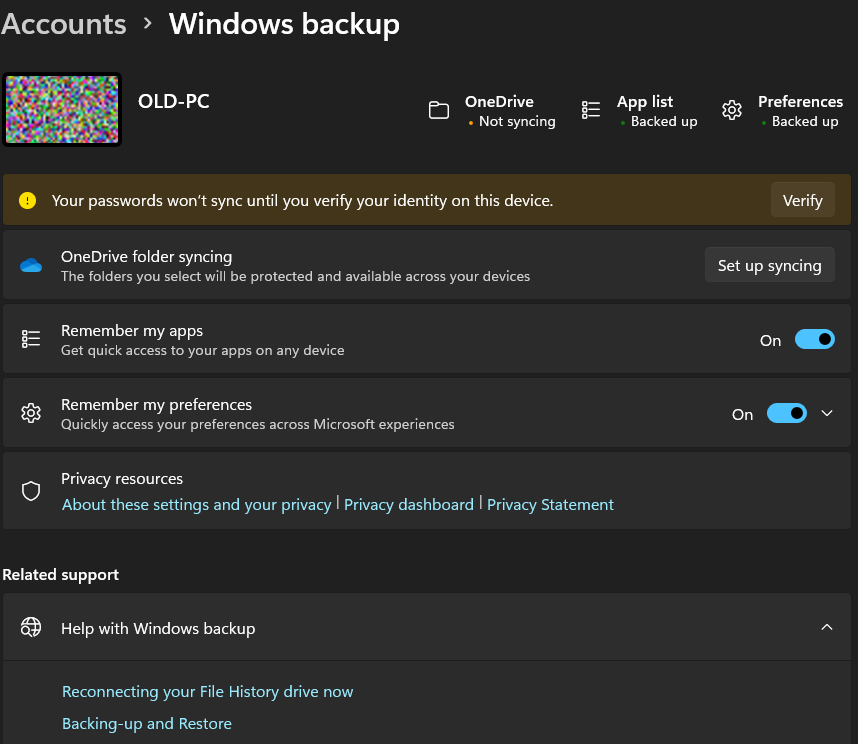
Our old PC had a local Windows account, as many PCs set up before 2023 do. The Windows Backup app opened on four promises: Folders ("Backup your files and folders to OneDrive"), Apps ("Remember installed apps and pinned app preferences"), Settings ("Remember Windows settings and preferences") and Credentials. We pressed Continue and signed in with a Microsoft account. The app went straight to "Backing up your PC... This might take a few minutes", without asking which folders, and a few minutes later said "Partially backed up", with "Verify your Microsoft account to back up credentials".
Settings > Accounts > Windows backup told the real story: "OneDrive: Not syncing". Not one file had been backed up. The folders need a separate Set up syncing button, which sends you to OneDrive, which asks you to sign in a third time (Windows, the backup app, OneDrive).
The 5 GB wall
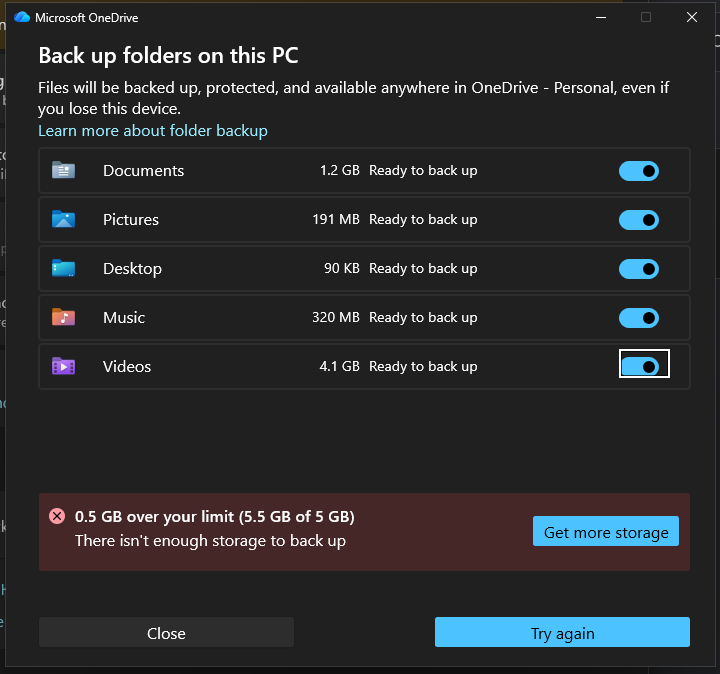
OneDrive then offered to back up three folders: Documents, Pictures and Desktop, "1.4 GB of 5 GB". Music and Videos were off. With all five on it refused up front: "0.5 GB over your limit (5.5 GB of 5 GB). There isn't enough storage to back up." That is honest, and better than a backup that silently stops at 5 GB. But it means a free account can't back up a PC with a few home videos: we had to leave Videos out, and Videos stayed on the PC only.
Apps and settings: "Backed up", then not
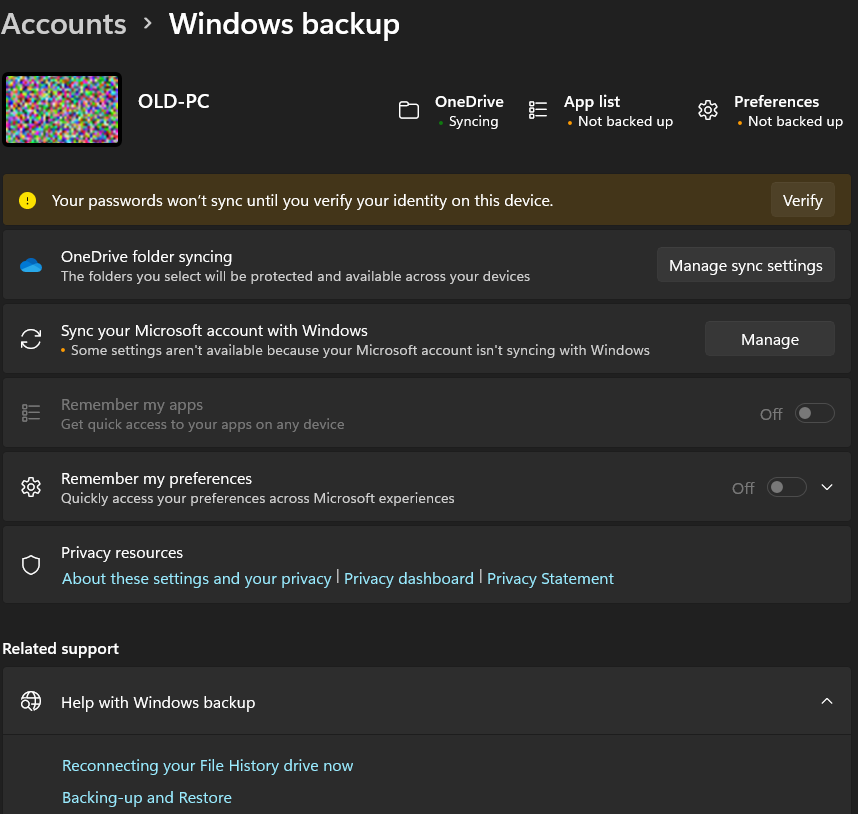
At first the same page said "App list: Backed up" and "Preferences: Backed up". Four hours later, with nothing changed by us, it said "App list: Not backed up" and "Preferences: Not backed up", both switches were off, and a new line said "Some settings aren't available because your Microsoft account isn't syncing with Windows".
Restoring on a new PC
On a freshly installed PC we signed in with the same Microsoft account during setup. Windows asked first to "Sync your Microsoft account with Windows": "If you choose not to sync, some features, including Windows backup, will be unavailable." Our old PC, with its local account, had never been asked this, which is what its "isn't syncing with Windows" line meant.
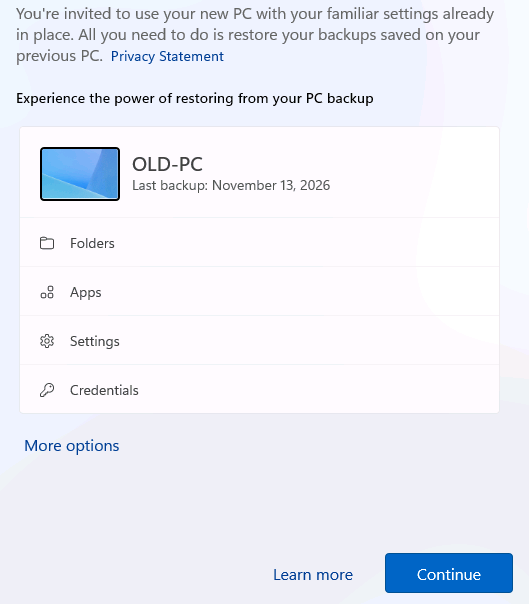
Then the offer we were waiting for: "Welcome back! ... All you need to do is restore your backups saved on your previous PC", our old PC by name, "Last backup: November 13, 2026", with Folders, Apps, Settings and Credentials listed. We pressed Continue. Thirty minutes later (after a Microsoft 365 trial offer and a 100 GB storage offer, both declined) we were on the desktop.
What we found:
- Settings: none came back. Light mode instead of dark, the taskbar in the middle, file extensions and hidden files hidden, normal text size and mouse speed, Windows' own wallpaper, one keyboard language. Windows' own restore log says why: "Preparing to restore 0 collections of settings", and "Unable to load cloud data" for the wallpaper and the theme. The setup page had listed "Settings" anyway.
- Desktop apps: none came back, not even as a link. The backup did hold the old PC's app list: Windows' restore log names 7-Zip and Notepad++ (and the old PC's other installed programs), each marked "should create placeholder", and then "placeholder created: false". 7-Zip's Start menu tiles were skipped with "No matching app metadata". (Chrome wasn't in the list at all: its installer on the old PC had not finished registering it.)
- Store apps come back as a download link. The Start menu had "↓ WhatsApp", the Store app installed on the old PC. Click it and the Store installs it.
- Files: the four folders OneDrive had, mostly. About an hour after reaching the desktop, OneDrive set itself up on the new PC and put Desktop, Documents, Pictures and Music back, as online-only files that download when opened. We made them all local and checked each one against the original's fingerprint: Desktop, Pictures and Music came back complete, and Documents came back with 1,512 of 1,514 files. The two missing: our 1.2 GB Outlook data file (.pst) and a file whose name starts with spaces (OneDrive doesn't allow leading spaces in names). File dates were kept. Hidden and read-only files came back as ordinary files.
- Not backed up at all: Videos (left out at the 5 GB limit), Downloads, the Scans folder, an app's own data, a folder outside the user folder (C:\Projects) and Public Documents. In all, 1,912 of our 2,367 files came back, 574 MB of 6.5 GB.
File History
It copied nothing until Windows was updated twice
File History lives in the old Control Panel now (System and Security > File History). We plugged in a second drive. File History didn't pick it by itself ("No usable drive was found. We recommend that you use an external drive"), because to Windows it was an internal disk, but Select drive listed it and we chose it, as anyone with a second disk would. Then Turn on.
Four minutes later nothing had been copied, so we pressed Run now. File History answered with this, while the drive sat there, connected and working:
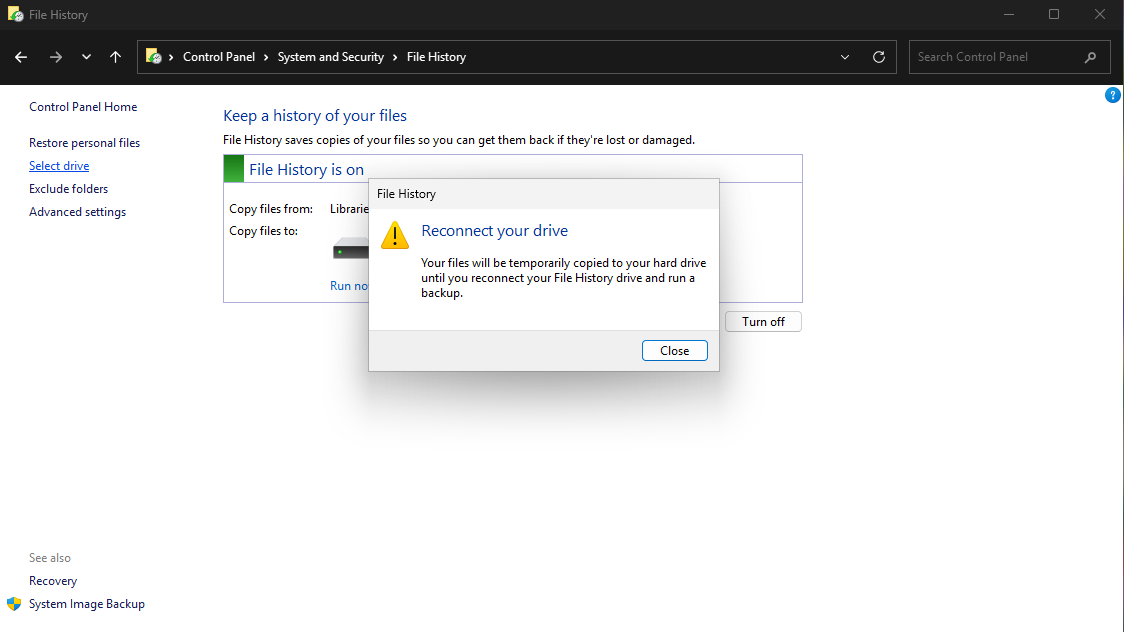
This is a known Windows bug. Microsoft's own update notes for KB5124010 (22 September 2026) say it fixes "an issue where File History might fail to back up or restore files" and that "affected devices might incorrectly display a 'Reconnect your drive' message". The bug came with the September 2026 security update. The fix is in build 26300.9550 and later.
What caught us out: Microsoft's own download of Windows 11 still installs a build with the bug. Our PC was set up on 12 November 2026 from the ISO on microsoft.com (its SHA-256 matches the one Microsoft publishes there), and came up as build 26300.9457. Windows Update then needed two rounds and two restarts to reach a build with the fix: the first installed the servicing stack and .NET, the second the November cumulative update (KB5132061), which brought build 26300.9974 after several restarts. Two minutes after that, File History started copying by itself, with no warning on its page. Until then it had copied nothing, and said so only in a small dialog that most people would close.
If you use File History: open Control Panel > File History and check that the line "Files last copied on..." shows today's date. If it shows nothing, or "Reconnect your drive" with the drive plugged in, run Windows Update until it says you're up to date, restart, and check again.
What it copies
Once it worked, File History's first copy took 13 minutes and we checked every copied file against the original's fingerprint. Its page says it copies "Libraries, Desktop, Contacts, and Favorites". In practice it copied every folder in the user's profile, which is more than the page says:
| On the old PC | Copied by File History |
|---|---|
| Documents | 1,513 of 1,514 (all but the file with a very long path) |
| Pictures, Videos, Music, Desktop | all |
| Downloads | all 26 |
| Scans (a folder in the profile that isn't a library) | all 20 |
| A file loose in the profile folder itself | no |
| AppData (an app's own settings and data) | no |
| C:\Projects (outside the user folders) | no |
| Public Documents | no |
Every awkward name came through as it was: accents, Japanese, Ukrainian, an emoji, a leading space, ;,#&, an empty
file, hidden and read-only files. The one exception was the file with a 320-character path: File History skipped it
and said so only in the Windows event log ("File was not backed up due to its full path exceeding MAX_PATH limit"),
never on its page.
The copies are ordinary files with the time added to the name, like todo 0 (2026_11_13 06_32_39 UTC).txt, so you can
copy them back by hand if you have to (and rename every one).
Restoring on a new PC
Our File History copies sat on a network share (a NAS does the same job). On the new PC we opened Control Panel > File History > Select drive, added the share, and ticked "I want to use a previous backup on this File History drive". It listed our old PC's backup by user and computer name. We picked it and pressed OK.
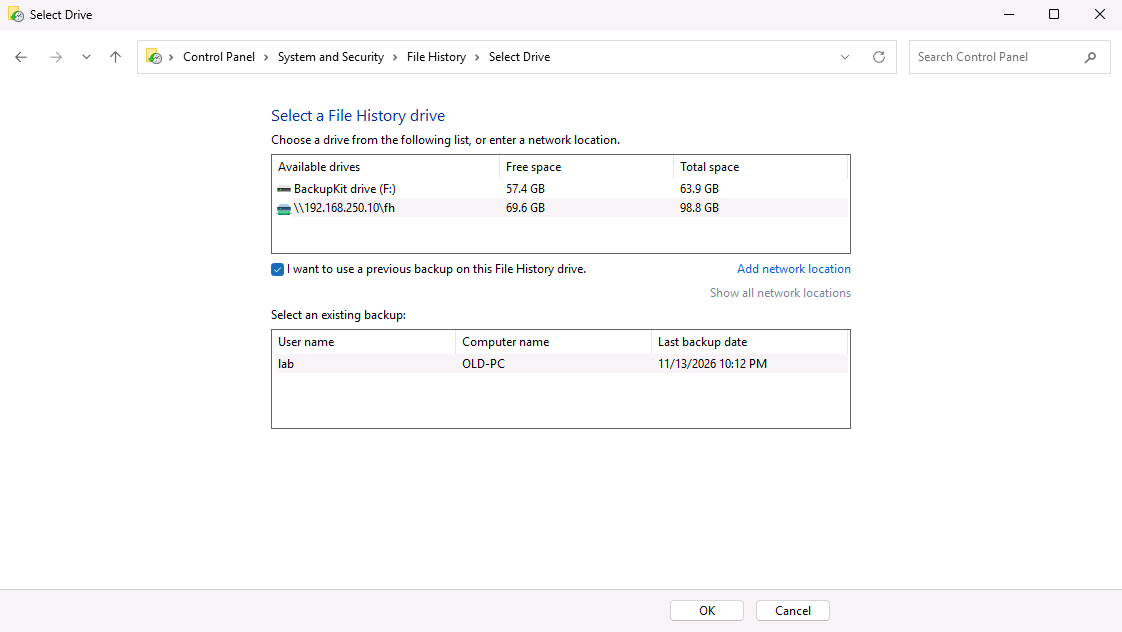
On a new PC installed from Microsoft's current download, that OK button did nothing: no message, no error. It was the same build with the File History bug as before. After Windows Update brought the November update, OK worked, and it also switched File History on for the new PC straight away, copying the new PC's files into the same backup.
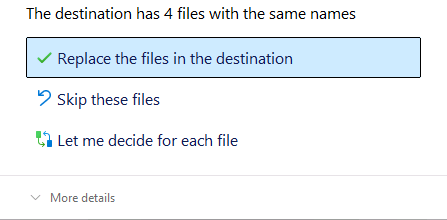
Then Restore personal files opens a browser of the backup, with arrows to step through its versions. It opened on the latest version. We selected everything and chose Restore to a separate folder. Partway through it stopped and waited at "The destination has 4 files with the same names" until we chose Replace, so don't leave it running unattended.
The latest version was missing all our photos and music. Pictures and Music came back with nothing in them but Windows' hidden folder settings. The photos were in the backup: one step back, at the version from 1:01 PM, both folders were complete, and restoring them from there brought back all 300 photos and 40 tracks. What happened in between: we had turned on OneDrive's folder backup, which moves Pictures and Music into the OneDrive folder, and File History's next run copied those folders without the files in them. If you use OneDrive's folder backup and File History together, step back through the versions before you decide a file is gone.
Everything else came back exactly: every file's contents, dates, and its hidden or read-only mark. The only change was a file whose name started with spaces: it came back with the spaces removed.
The system image
Windows 11 still has it: Control Panel > System and Security > Backup and Restore (Windows 7) > Create a system image, next to "Create a system repair disc". It copies the whole Windows drive, and you get it back from the recovery screen, onto a disk that is wiped first. It's all or nothing: there's no picking one folder out of it from that screen, and it brings back the old PC as it was, apps and settings included, which is exactly what Windows Backup didn't do.
We didn't restore one in this test. An image of our test PC (about 35 GB) would have taken most of a day on the laptop disk our test PCs ran on, which says more about that disk than about Windows. We'll cover restoring whole PCs, images included, in a separate test.
What to do
- Check what Windows Backup is really doing. Don't trust the backup app's own screen: open Settings > Accounts > Windows backup and read each line. "OneDrive: Not syncing" means no files are being backed up.
- Count your folders against 5 GB. Right-click Documents, Pictures, Desktop, Music and Videos > Properties. If they add up to more than 5 GB, a free account can't hold them, and whatever you leave out (for us, Videos) isn't backed up anywhere.
- Downloads, other folders and Outlook data files need something else. Windows Backup only offers the five folders. If you use an Outlook data file (.pst) in Documents, check that it actually reached OneDrive.
- Write down your apps. No desktop app came back on our new PC. A list (Settings > Apps > Installed apps) and a screenshot of your Start menu make reinstalling quicker.
- If you use File History, check it today. Control Panel > File History should say "Files last copied on" with a recent date. If not, run Windows Update until it says you're up to date and check again.
- When you restore File History, look at older versions too. Use the arrows in Restore personal files before you decide something is gone, especially if you also use OneDrive's folder backup.
- Keep one copy off the PC. An external drive you plug in now and then, or a NAS, covers what OneDrive's free 5 GB doesn't.
- Test a restore once. Restore a folder somewhere harmless and open a few files. It's the only way to know the backup holds what you think.
Where BackupKit fits
We make BackupKit, so read this part with that in mind. We ran it through the same test, with the same files, to the same kind of second drive, and restored it on the same new PC.
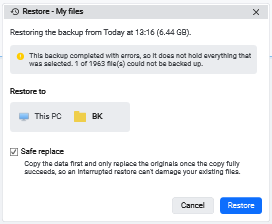
- What it backed up: the folders we picked (Desktop, Documents, Downloads, Music, Pictures, Videos, Scans and the loose file in the profile), every file but one, compressed into one encrypted zip. The one it missed was the same file with a 320-character path that File History skipped, and BackupKit's result said "not everything was backed up" and named the file in its activity log.
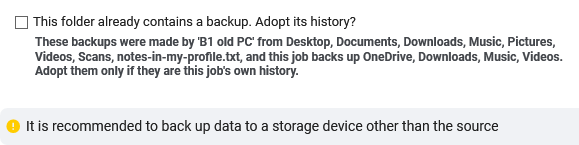
- On the new PC: the drive had a plain
HOW-TO-RESTORE.txtnext to the backup, saying how to get the files back with 7-Zip and no BackupKit at all, or with BackupKit. We followed its BackupKit steps: install, create a backup pointed at the same folder. BackupKit spotted the old PC's backup there and offered to adopt its history, then restored it to a folder we chose. It asked for the backup's password first, and warned before starting that this backup "completed with errors" and named how many files were missing. - Result: 1,963 files back in the folder we chose, every one identical to the original, dates kept, including the file with spaces at the start of its name. What it got wrong: the two files marked hidden and read-only came back as ordinary files, which Windows Backup also did. We've noted that for a fix.
- What it doesn't do: no system image, no apps, no Windows settings. It backs up files and folders, to a drive, a NAS or a cloud account you choose, and you need to set it up before you need it.
How we tested
- When and what: 12-14 November 2026. Windows 11 Pro 26H2 from Microsoft's Home/Pro ISO
(
Win11_Client_26300_9457_x64_en-us.iso, SHA-256 matching microsoft.com's), installed fresh on each PC with the generic Pro install key, so not activated. Updated through Windows Update as described above. On settings: Windows' own restore log on the new PC says there were no settings in the backup to restore ("0 collections"), so the new PC didn't refuse them; we can't rule out that an unactivated old PC never uploads them. - The PCs: Hyper-V virtual machines on one laptop (4 virtual processors, 6 GB of memory, a 100 GB disk each): one "old PC", and one new PC set up through Windows' own first-run setup with the Microsoft account, where Windows Backup's restore ran. File History and BackupKit were then restored on that same new PC, each into its own empty folder. A virtual second disk stood in for the external drive, and a second virtual machine for a NAS.
- The files: generated the same way every time, with a SHA-256 fingerprint of every file before the backup. "Came back" means the restored file has the same fingerprint. Dates and hidden/read-only marks were compared too. Files OneDrive restored as online-only were downloaded first.
- Lab settings that change nothing a backup tool sees: Windows Defender was told to skip the test folders and the backup drives, and search indexing was turned off, because the laptop's disk could not keep up otherwise. (File History needs the search service: with it off, choosing the old backup failed with "Could not reassociate with File History data". We turned it back on for that step.)
- Microsoft account: a free test account with the free 5 GB of OneDrive.
- Timings are from virtual machines on a slow laptop disk: they show what took long, not how fast your PC will be.
FAQ
Does Windows 11 back up my files automatically? Not unless you set it up. File History is off until you turn it on and give it a drive. The Windows Backup app needs a Microsoft account, and its file part is OneDrive folder syncing, which has its own Set up button. On our test PC the app said "Backing up your PC..." while Settings said "OneDrive: Not syncing".
Does the Windows Backup app back up my apps? It saves a list of them. On our new PC, the one Store app came back as a download link in the Start menu. None of the desktop apps (7-Zip, Notepad++, Chrome) came back, not even as a link.
Does Windows Backup back up the Downloads folder? No. It offers Desktop, Documents, Pictures, Music and Videos, through OneDrive. Our Downloads folder did not come back on the new PC, and neither did any folder outside those five.
Is the free 5 GB of OneDrive enough? It wasn't for our test PC: its five folders held 5.8 GB, and OneDrive refused to back them all up. Add up your own folders (right-click > Properties) before you rely on it.
What does File History leave out? Apps' own data (AppData), anything outside your user folder (like C:\Projects or Public Documents), files lying loose in the user folder itself, and files whose full path is longer than 260 characters, which it reports only in the Windows event log.
Can I restore File History onto a new PC? Yes. Connect the same drive or share, open Control Panel > File History > Select drive, tick "I want to use a previous backup on this File History drive" and pick your old PC. Update Windows first: on the build Microsoft's download installs today, that step silently does nothing. Then use Restore personal files, and check older versions if a folder looks empty.