Automated Encrypted Cloud Backups for Windows
Last updated May 25, 2026
Schedule encrypted, compressed backups from Windows to Google Drive, Dropbox, OneDrive, S3, NAS, or any SFTP server. AES-256 before upload, retention policies, missed-run handling — one focused desktop app.
The best backup is the one that runs without you remembering. The second-best is one that’s encrypted, so a compromised cloud account or a stolen external drive doesn’t become a second incident on top of the first. BackupKit does both: a scheduler that runs unattended, AES-256 encryption before anything leaves your PC, and destination flexibility that doesn’t lock you to a single cloud vendor.
What an automated, encrypted cloud backup actually looks like
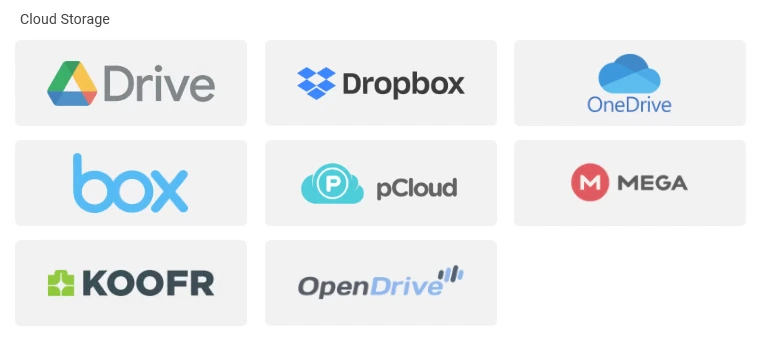
BackupKit is a Windows desktop app that connects to 24 storage services — Google Drive, Dropbox, OneDrive, pCloud, Box, Mega, Koofr, OpenDrive, ownCloud, Nextcloud, Seafile, FTP, SFTP, FTPS, WebDAV, and any local or network drive (plus Amazon S3, Azure Blob, Google Cloud Storage and S3-compatible providers like Cloudflare R2 and Backblaze B2). A backup job ties one source to one destination, runs on a schedule, and applies your encryption/compression/retention rules every run.
- Source: any local folder, network share, or another connected storage
- Destination: any connected storage — cloud, S3-class object storage, SFTP, NAS, self-hosted server
- Compression: configurable ZIP levels — trade speed against size
- Encryption: 256-bit AES, applied locally before upload; restoring asks for the password
- Schedule: daily, weekly (specific days), custom intervals (every N hours/days), or manual only
- Retention: prune automatically by days kept or by number of versions
Why encrypt the backup itself?
Cloud providers already encrypt data at rest and in transit. That isn’t the same as end-to-end encryption. When the provider holds the keys, a provider-side breach, a compromised account, or a court order can all expose the contents. Client-side AES-256 encryption means the archive is ciphertext from the moment it leaves your PC. Whoever ends up with a copy — a hacked Dropbox account, a stolen external drive, a curious admin at your hosting provider — sees nothing without the password.
BackupKit encrypts the archive locally before uploading. The password is never sent to the cloud provider; you hold it, and you need it to restore.
Encryption is only useful if you can get your data back. Keep the password stored somewhere reliable and separate from the backup destination — a password manager is the standard answer. An encrypted backup with a lost password is indistinguishable from no backup at all.

Setting up an automated backup (3 steps)
BackupKit uses a three-step wizard: pick what to back up and where, configure the rules, save and activate.
- Source & destination. Source is the folder you’re backing up — typically a project folder, Documents, a photo library, or a database export directory. Destination is any storage you’ve connected in BackupKit.
-
Configure.
- Compression level (higher = smaller archive, slower CPU)
- Encryption — pick AES-256 unless you have a reason not to — and the password
- Schedule: daily at 2am, every Sunday, every 6 hours — whatever matches how often the source changes
- Missed run policy: skip, run immediately on wake, or wait for the next slot
- Retention: keep the last 30 days, or the last 7 versions
- Notifications: email, Telegram, webhook, or local script on success / failure / completed with errors
- Save and activate. The job appears in the backup list with its next scheduled run and a green/yellow/red health indicator.
Picking a destination
The “where to back up” question is worth thinking about for 30 seconds before you pick.
Consumer cloud (Drive, Dropbox, OneDrive, pCloud)
Easiest to set up. Off-site by default. Free tiers cover small volumes; paid plans are cheap per gigabyte. Good fit for documents, photos, project folders.
Object storage (S3, Azure Blob, GCS)
Cheapest per gigabyte at scale. Good for large archives, infrequently accessed data, lifecycle-rule tiering. See the S3 backup guide.
NAS via SFTP or WebDAV
Synology, QNAP, Unraid — all work as backup destinations. On-prem, no monthly fee, but “in the same building as your PC” isn’t truly off-site. See the NAS backup guide.
Self-hosted (NextCloud / ownCloud / SFTP)
Best of both if you have a server elsewhere. WebDAV or SFTP. See the self-hosted backup guide.
For anything critical, the standard convention is the 3-2-1 rule: three copies, two different media, one off-site. BackupKit makes it cheap to run two jobs with the same source and two different destinations — one to a NAS nightly, one to cloud weekly.
Compression and retention in practice
Compression is integrated — each run is stored as a compressed archive, optionally encrypted. For a typical mix of documents and code, expect 20–50% size reduction. Media files (JPEG, MP4) don’t compress meaningfully, so don’t plan storage based on huge ratios if that’s your data.
Retention policies stop the destination growing forever:
- By days: “keep anything from the last 30 days.” Predictable disk usage if your data volume is stable.
- By versions: “keep the last 7 runs.” Simpler mental model; disk usage scales with backup size.

Knowing when something breaks
Backups that fail silently are worse than no backup — they create false confidence. BackupKit has a built-in notifications layer: email, Telegram bot, webhooks (POST to anywhere), local scripts/executables, and in-app tray popups. Configure once globally, then enable per backup on success, failure, or completion with errors.
The home dashboard also shows a green/yellow/red status per job at a glance — you open the app, you see green, you close the app. If something turned yellow or red, the run history and detailed logs tell you why.
Answers to the usual questions
In v1, each scheduled run creates a full archive of the source at that point in time. Retention controls how many past runs are kept. Incremental/deduplicated backups are on the roadmap.
BackupKit has one-click restore — pick a run from the history, choose where to restore to, enter the password if it’s encrypted. Or download the archive manually from the destination and extract it yourself.
Yes — BackupKit is a desktop app and the scheduler runs inside it. If the PC is off when a run is due, the missed-run policy handles it on next launch.
The job is marked failed, logs are kept, and it retries on the next scheduled run. Notifications fire (if enabled) so you don’t find out weeks later.
Yes. Source can be any connected storage, not just local folders. Example: back up an SFTP server’s /var/www directory to Google Drive weekly.
Related
- Scheduled backups feature — full walkthrough of the scheduler.
- AES-256 encryption feature — how client-side encryption works in BackupKit.
- 24 storage destinations — full provider list.
- Back up Windows to Amazon S3
- Back up Windows to a NAS (Synology, QNAP, Unraid)
- Self-hosted backup destinations on Windows
Back up anything, anywhere — today
Encrypted, scheduled, automated backups to storage you already own. Try every feature free for 30 days — no card required.