Back Up Windows to Amazon S3
Last updated May 25, 2026
Run automated, AES-256 encrypted backups from Windows directly to your own Amazon S3 bucket — with retention policies and notifications. No middleman, your bucket, your bill.
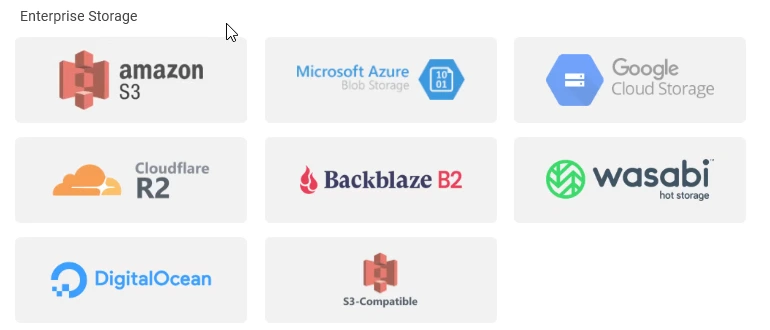
Native Amazon S3 is built in - along with Azure Blob, Google Cloud Storage, and any S3-compatible provider (Cloudflare R2, Backblaze B2, Wasabi, DigitalOcean Spaces, MinIO and more). Connect your bucket with an access key and back up straight to it. Prefer a different bring-your-own-storage target? An SFTP server or NAS works the same way.
Amazon S3 is the default destination for serious backups: cheap per gigabyte, durable, regionally redundant, and not going anywhere. The catch is that S3 is a developer surface, not a backup tool — raw uploads, no schedule, no encryption layer, no retention policy. BackupKit fills that gap. You connect your bucket once, configure a backup job, and it runs on its own with AES-256 encryption applied before anything hits AWS.
Why S3 for backups
- Cheap at scale. S3 Standard is ~$0.023/GB-month. S3 Standard-IA is ~$0.0125/GB-month. Glacier Deep Archive is ~$0.00099/GB-month for cold storage.
- Durable. Eleven nines of durability across multiple availability zones — effectively no risk of bit-rot.
- You own the bucket. No proprietary backup vendor between you and your data. If you stop using BackupKit, your bucket is still there.
- Lifecycle rules. Auto-transition older objects to cheaper tiers (Standard-IA → Glacier) without changing your backup job.
- IAM control. Create a dedicated IAM user with write-only access to a single bucket prefix. BackupKit only ever sees the keys for that.
What you’ll need
- An AWS account.
- An S3 bucket. Pick a region close to you; enable versioning if you want bucket-side history on top of BackupKit’s retention.
- An IAM user with an access key and secret, granted
s3:PutObject,s3:GetObject,s3:ListBucket, ands3:DeleteObjecton the bucket (the last only if you want BackupKit to apply its retention policy by deleting old archives).
Create a dedicated IAM user scoped to just the backup bucket. If those credentials ever leak, the blast radius is one bucket, not your whole AWS account.
Setting it up in BackupKit
- Add the S3 account. In BackupKit, open the account wizard for Amazon S3. Enter your access key, secret key, region, and bucket name. BackupKit verifies the credentials and lists the bucket contents.
- Create a backup job. Source = the local folder you want backed up. Destination = the S3 account you just added (optionally a path prefix like
backups/desktop/). - Configure. Pick AES-256 encryption with a strong password, set a schedule, set retention (days or versions), and enable notifications.
- Save and activate. First run uploads everything. Subsequent runs respect your schedule.
Encryption: your password, not Amazon’s key
AWS encrypts objects at rest by default (SSE-S3 or SSE-KMS). That protects against someone walking out of a datacenter with a drive. It does not protect against a compromised AWS account, an over-privileged IAM role, or a court order — AWS holds the keys in all three cases.
BackupKit encrypts before upload. The archive lands in S3 as ciphertext. Whoever ends up with access — a hacked AWS console, a misconfigured public bucket, a curious admin — sees encrypted bytes only. Your password is never sent to Amazon and never leaves your machine.

Cost in practice
For 100 GB of compressed, encrypted backups in S3 Standard with a 30-day retention policy, you’re looking at roughly $2.30/month in storage plus pennies for PUT requests. The cost is the same whether the data sits in one archive or thirty — AWS bills by total stored bytes, not file count.
If you want it cheaper, configure an S3 lifecycle rule to transition objects older than 30 days to S3 Standard-IA or Glacier Instant Retrieval. BackupKit’s retention still works because the lifecycle rule moves objects between tiers, not out of the bucket.
S3-compatible providers also work
The S3 API is a de-facto standard. BackupKit’s S3 connector also works with:
- Backblaze B2 via the S3-compatible endpoint — cheaper than S3 if you’re not in AWS already.
- Cloudflare R2: no egress fees, useful if you’re restoring frequently.
- Wasabi, DigitalOcean Spaces, Hetzner Object Storage: predictable flat pricing.
- MinIO: if you run your own object storage on-prem.
For native (non-S3-API) cloud providers, BackupKit also supports Google Cloud Storage and Azure Blob directly.
Restoring from S3
Open the backup job’s history, pick a run, hit Restore. BackupKit downloads the archive, decrypts it with your password, and writes it back to the source path (or somewhere else if you prefer). For archives that have been lifecycled to Glacier, you may need to wait minutes-to-hours for the retrieval — BackupKit shows the restore status.
Common questions
Use S3 Standard as the destination and a bucket lifecycle rule to transition to Glacier. Direct-to-Glacier uploads aren’t a typical backup workflow because retrievals are slow and rate-limited.
s3:PutObject, s3:GetObject, s3:ListBucket, and s3:DeleteObject on the target bucket. Scope to a path prefix if you share the bucket.
Use S3 Cross-Region Replication on the bucket itself, or create a second BackupKit job pointing at a second-region bucket. The replication option is simpler and uses native AWS plumbing.
Related
- 24 storage destinations — cloud, NAS, FTP/SFTP, and self-hosted plus S3, Azure & S3-compatible.
- AES-256 encryption feature
- Scheduled backups feature
- Automated encrypted cloud backups (overview)
- Back up Windows to a NAS — on-prem alternative.
Back up anything, anywhere — today
Encrypted, scheduled, automated backups to storage you already own. Try every feature free for 30 days — no card required.